Your AI track has clipping. You can hear it — a harsh buzzing on loud transients, a brittleness in the high end, a feeling that something is broken in the sound. This guide explains what's happening and how to fix it.
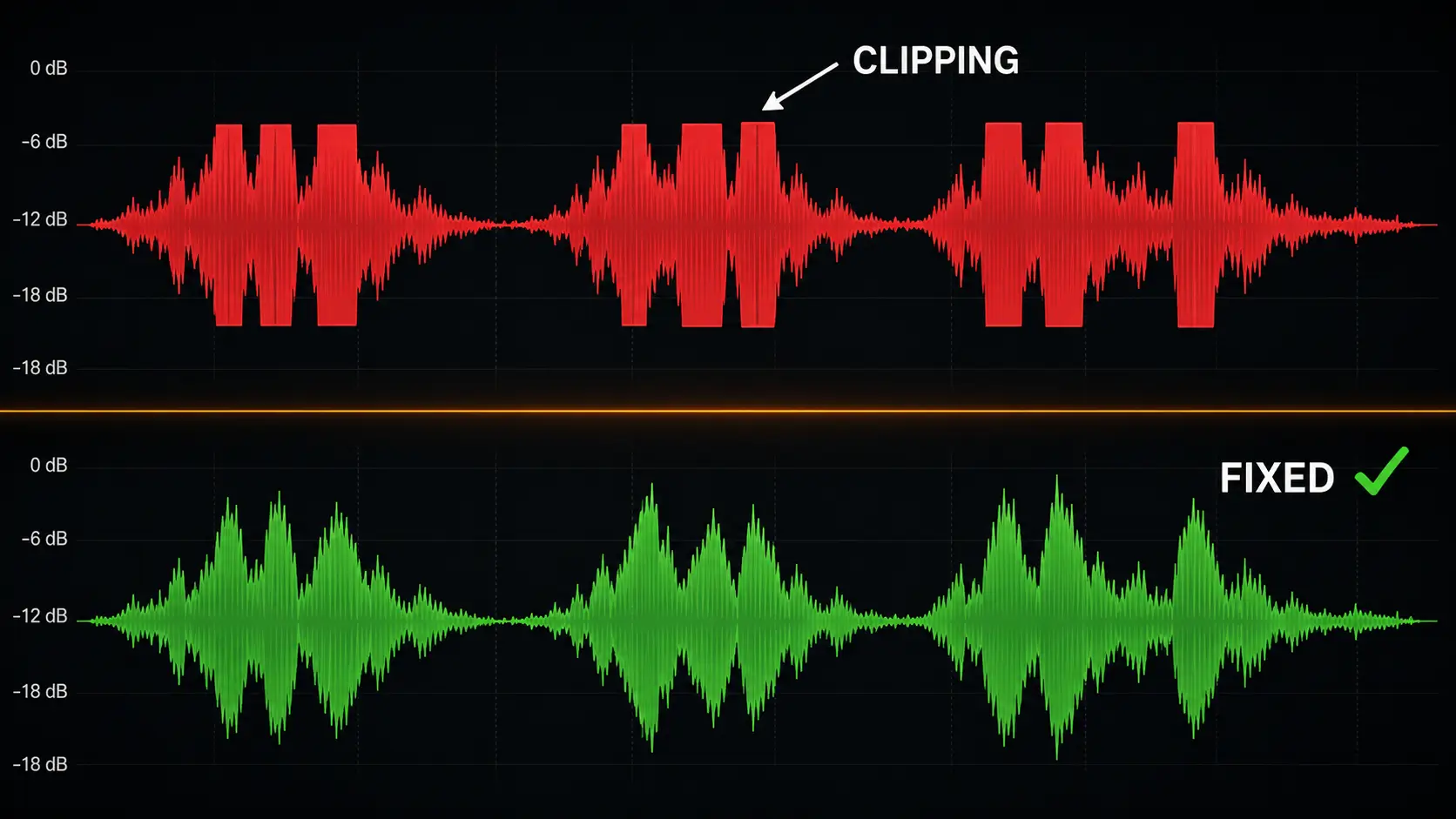
What clipping sounds like
Clipping isn't subtle once you know what to listen for. It sounds like:
- A harsh crackle on snare hits or kick drums
- Distortion on loud vocals or synth peaks
- A general brittleness or "cardboard" quality in the high frequencies
- Pumping or breathing artifacts on sustained notes
If your track sounds fine at low volume but harsh when you turn it up — that's clipping.
Why AI music clips
Suno, Udio, and similar generators prioritize making tracks sound impressive in their own preview player. That player is optimized for the generator's output level — typically -10 to -12 LUFS, often with peaks hitting 0 dBFS or above.
0 dBFS is the absolute ceiling of digital audio. When a signal tries to go above it, the waveform gets cut flat — clipped. Every sample that should be a smooth peak becomes a harsh square wave instead.
The generator doesn't know or care that your track will end up on Spotify. It's optimizing for the demo.
Three ways to fix it
Option 1: WaveDisco (recommended)
Drop your track into wavedisco.com. The studio applies transparent limiting with a true peak ceiling of -1 dBFS, then normalizes to your target platform's LUFS. The clipping is caught before it becomes a problem, and the track is ready to upload. Free, no account needed.
Option 2: Audacity (free desktop)
- Import your track
- Go to Effect → Loudness Normalization
- Set integrated loudness to -14 LUFS
- Then go to Effect → Limiter
- Set limit to -1 dB, soft limit enabled
- Export as WAV
This takes about 3 minutes and fixes most clipping issues. The result won't be as transparent as dedicated mastering tools, but it's a significant improvement.
Option 3: iZotope Ozone (professional)
If you're serious about quality, Ozone's maximizer is the industry standard. The Transient Shaper module handles AI music particularly well because it can target the attack phase where most AI clipping occurs. Not free — but the results can be noticeably better than free tools.
The true peak rule
Whatever tool you use, remember one number: -1 dBFS true peak maximum.
Regular peak meters measure sample values. True peak meters measure the peaks that occur between samples — which is where a lot of AI music clipping actually hides. Always use a true peak limiter, not a regular peak limiter.
WaveDisco and Ozone both use true peak limiting by default. Audacity's limiter is sample-peak only — acceptable for most cases, but not technically correct.
After fixing clipping
Once your track is clean, check these before uploading:
- Integrated loudness is at your target platform's LUFS
- True peak is at -1 dBFS or below
- The track sounds natural at normal listening volume — not squashed or pumped
- The stereo image is intact — clipping can sometimes affect stereo width
Then upload. The platform's normalization will have clean material to work with, and the difference in perceived quality is real.