Most mastering tools do one thing: make your track louder and cleaner. WaveDisco Studio has a DJ tab that does something different — it lets you play with the audio creatively before or after mastering.
No software. No plugins. No DJ controller required. Just a browser.
Open it: wavedisco.com/studio → DJ tab
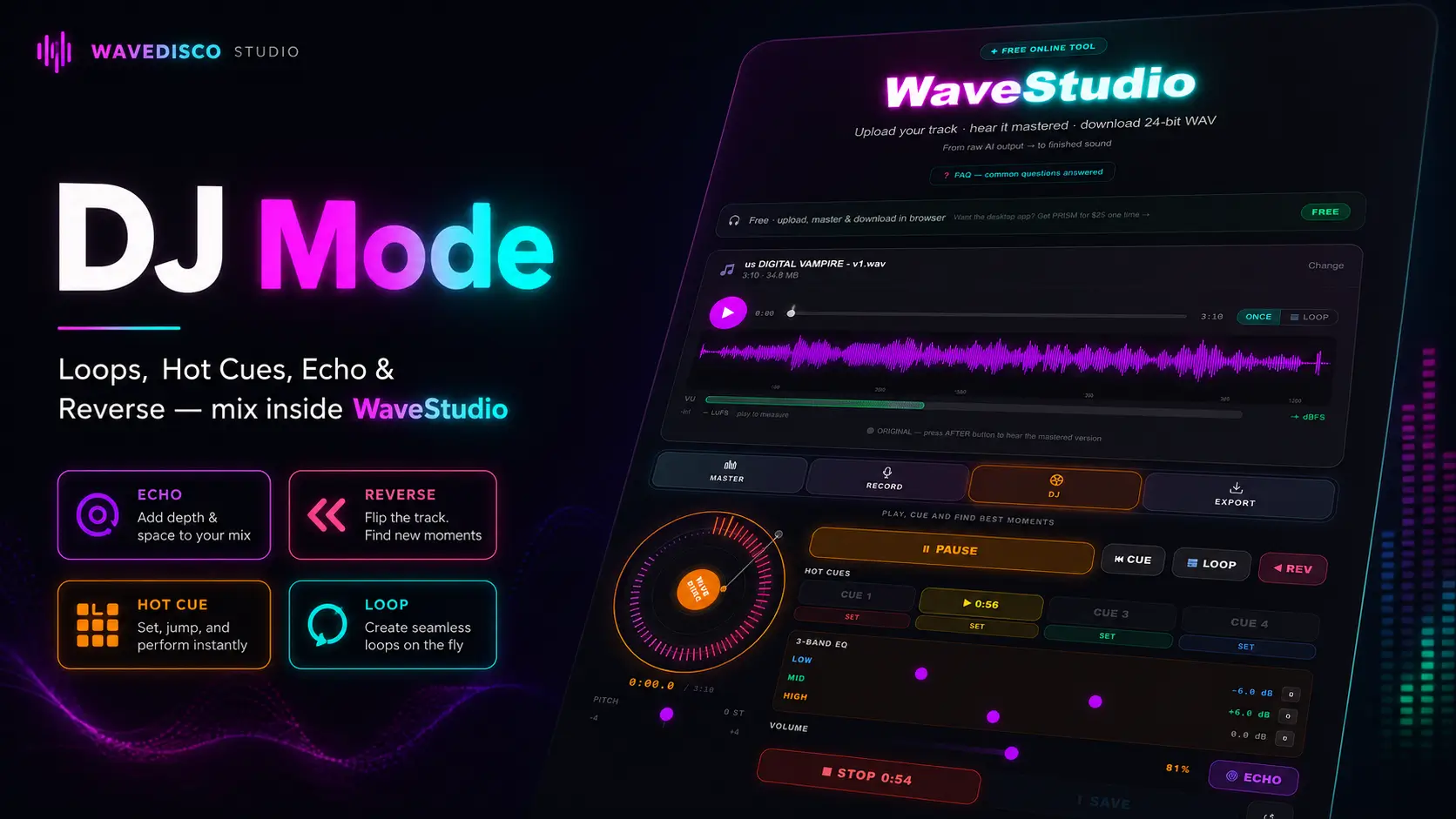
What's in the DJ tab
Four tools: Echo, Reverse, Hot Cue, Loop. Plus an Export DJ Mix button that saves everything as a 24-bit WAV.
Echo
Echo adds a delay effect to your track. The delay time is set at 250ms — roughly one beat at 120 BPM. Feedback controls how many times the echo repeats before fading out.
Low feedback: one clean repeat. High feedback: the echo builds up and trails off slowly. Good for transitions and drops.
Reverse
Reverse flips the playback direction. The whole track or a selected section plays backwards.
AI music often has interesting textures when reversed — synth pads, atmospheric elements, vocal chops. Worth experimenting with before committing to a final version.
Hot Cue
Hot Cue marks a specific point in the track. One click to jump back to that point instantly during playback. Useful when you're building a mix and want to return to a specific section repeatedly.
Loop
Loop repeats a selected section continuously. Set the start and end point, enable loop, and that section plays on repeat until you disable it.
Good for: identifying the strongest part of your track, building tension before a drop, or creating a seamless repeating section for video background use.
Export DJ Mix
When you're done experimenting, Export DJ Mix saves your session as a 24-bit stereo WAV. Same quality as the master export — no quality loss from the DJ processing.
If you've combined Echo and Loop effects during a session, the export captures exactly what you heard during playback.
How this fits into a workflow
The DJ tab is separate from the mastering chain. You can master your track first in the Master tab, then switch to DJ and experiment with the processed version. Or work with the raw track in DJ mode first, then master the result.
Either order works. The two tabs don't interfere with each other.
Who this is for
If you're making AI music for YouTube videos, the Loop tool is useful for creating seamless background sections. If you're making content for social media, Reverse and Echo add texture that raw AI output doesn't have. If you're curious about what your track sounds like backwards — try it, costs nothing.
Come experiment. It's free and takes about 30 seconds to try.
Related: WaveDisco Studio — Complete Guide · AI Music Mastering Guide