By Serj · July 2026 · 4 min read
You generated a track with Suno or Udio. It sounds good in the preview. But before you upload it anywhere — it needs mastering.
Most mastering tools cost money. WaveDisco Studio doesn't.
What WaveDisco Studio Does
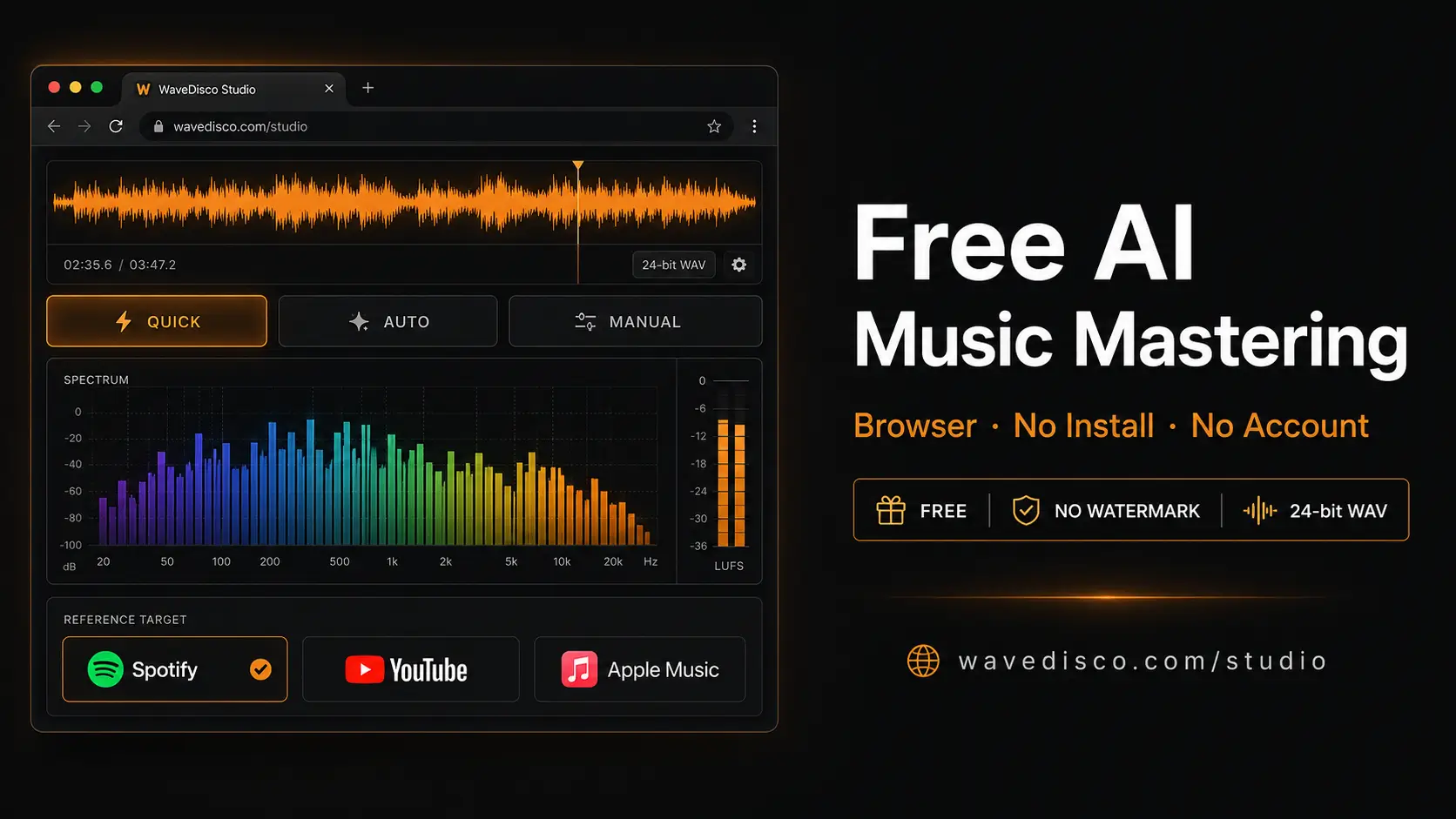
WaveDisco Studio is a free browser-based mastering tool built specifically for AI-generated music. No installation. No account. No watermark on the export.
Drop your track in. Get a clean 24-bit WAV back.
Open it: wavedisco.com/studio
Why AI Music Needs Mastering
Suno and Udio export tracks at -10 to -12 LUFS — significantly louder than what streaming platforms expect. Spotify targets -14 LUFS. Apple Music targets -16 LUFS.
When you upload an unmastered AI track, the platform turns it down automatically. But turning down a clipped track doesn't fix clipping. The distortion stays — just at a lower volume.
Mastering fixes this before upload.
Three Modes — Pick What Fits
Quick — one click, done in seconds. Applies a high-pass filter, true peak limiter, and normalizes to your platform target. Best for most AI tracks.
Auto-Master — analyzes your track automatically. Detects genre, selects the right processing chain, applies corrections where needed. Choose your platform and processing strength.
Manual — full control. 8-band parametric EQ, parallel compressor, tape saturation, de-esser, stereo widening, reverb. For when you want to go deeper.
What You Get for Free
- Loudness normalization to Spotify, YouTube, Apple Music, or Club/DJ targets
- True peak limiting at -1 dBTP
- Clipping correction
- 24-bit WAV export with embedded metadata
- Auto-generated cover art in the exported file
- No watermark, no account, no time limit
How to Use It
- Open wavedisco.com/studio
- Drop your Suno or Udio track
- Check the Analyze tab — see LUFS, True Peak, Mud readings
- Choose Quick or Auto-Master
- Select your platform
- Export and upload
That's the full workflow. Under 5 minutes.
Related: What Is LUFS · How to Fix Clipping · WaveDisco Studio Guide