Most people drop a track into a mastering tool and hit process without knowing what's actually wrong with the audio. The Analyze tab in WaveDisco Studio shows you exactly what you're working with before you touch anything.
Two minutes with the analyzer saves you from processing a track in the wrong direction.
Open it: wavedisco.com/studio → Analyze tab
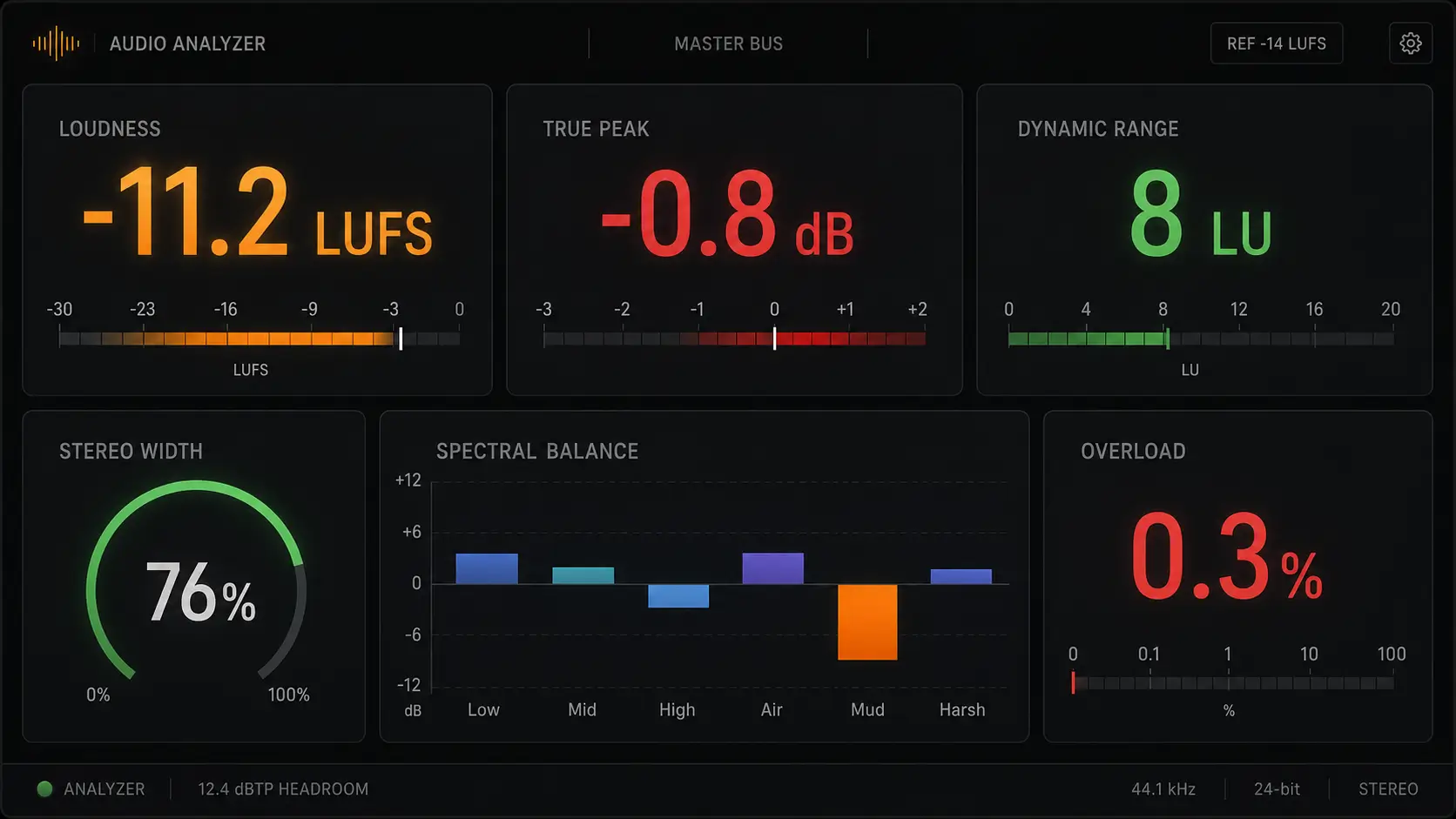
What the analyzer measures
Integrated LUFS
The overall loudness of your track. Spotify targets -14 LUFS. Apple Music targets -16 LUFS. A typical Suno export measures -10 to -12 LUFS — too hot for streaming. This number tells you exactly how much correction is needed.
True Peak
The highest peak in the track measured in dBFS. Streaming platforms require this to be at or below -1 dBFS. If your True Peak is at 0 dBFS or above — the track is clipping. This needs to be fixed before upload.
Dynamic Range
Measured in LU (Loudness Units). Higher number means more variation between loud and quiet moments. AI music often has low dynamic range because generators compress internally. A reading below 6 LU means the track is already heavily compressed — aggressive mastering will make it worse, not better.
Crest Factor
The ratio between peak level and average level. High crest factor means the track has sharp transients — drums, plucks, attacks. Low crest factor means the signal is dense and compressed. Useful for deciding how hard to push the limiter.
Stereo Width
0% is mono. 100% is full stereo. AI music can sometimes produce phase issues that show up as unusual stereo readings — very narrow (near mono) or unstable. If stereo width is below 20%, the track may have a phase problem worth investigating.
Spectral balance readings
These six readings tell you where the frequency problems are:
- Low — bass and sub-bass energy. High reading means heavy low end.
- Mid — the core of the mix. Should be the strongest reading for most genres.
- High — presence and clarity. Too low means the track sounds dull.
- Air — frequencies above 10 kHz. Adds shimmer and openness.
- Mud — buildup in the 200–350 Hz range. High Mud reading means the track sounds thick and unclear. Cut this range in Manual mode before processing.
- Harsh — aggressive energy in the 2–5 kHz range. High Harsh reading means the track will sound fatiguing at volume. De-harsh module in Manual mode addresses this directly.
Overload percentage
What fraction of samples exceed 0 dBFS. Any number above 0% means the track is clipping. Even 0.1% overload is audible on good speakers.
How to read the results
A clean AI track ready for standard mastering looks like this: LUFS between -12 and -14, True Peak below -1 dBFS, Dynamic Range above 6 LU, Mud and Harsh readings in the normal zone, Overload at 0%.
A track that needs attention looks like this: LUFS at -10 or hotter, True Peak at 0 dBFS, Overload above 0%, Mud reading elevated.
If Mud is high — switch to Manual mode and reduce the 200–350 Hz range before processing. If Harsh is high — use the De-harsh module. If Overload is above 0% — the limiter needs to catch those peaks before normalization.
The right workflow
- Drop your track into the studio
- Go to Analyze tab — read the numbers
- Decide which Master mode fits: if everything looks normal, Auto-Master handles it. If Mud or Harsh are elevated, Manual gives you the control you need.
- Process in Master tab
- Come back to Analyze — check that LUFS hit the target and Overload is at 0%
- Export
The analyzer is a before-and-after tool. Use it twice — once to understand the problem, once to confirm the fix.
Come try it — it's free and the analysis takes about 10 seconds.
Related: WaveDisco Studio — Complete Guide · What Is LUFS · How to Fix Clipping